 User Documentation
 Planning for Mini-Migration - Joomla 3.10.x to 4.x
Going from Joomla 3.10.x to 4.x is considered a mini-migration or a minor migration. This means that Joomla core extensions will upgrade with a “one-click update” but third-party extensions are debatable and need to be taken on a case by case basis.
Start planning by asking the following questions or doing the tasks listed below. You may have more items to plan for depending on the complexity of your site. Sadly, there is no way we can list every possible scenario. Please see the Migrating and Upgrading to Joomla 4.x Forum for assistance.
The 3.10.x Bridge
Joomla 3.10.x is intended to be a bridge between the Joomla 3 life cycle and the Joomla 4 life cycle. Joomla 3.10.x will primarily be a release containing backports of API changes from the Joomla 4.x development branch to help ease the transition to the next major release for the community. New to Joomla 3.10.x is an excellent feature to the Joomla! Update component to help you with your mini-migration process: the Pre-Update Check. Once your website is updated to 3.10, the pre-update check will allow you to check the compatibility with Joomla 4.0 of your PHP and SQL options, settings, and the extensions you are using as long as extension developers utilised the targetplatform tag. See Pre-Update Check documentation for more.
Planning Action Items
The following assumes that you have already updated your Joomla 3.x site to version 3.10.x. This will allow you to take advantage of the Pre-Update Checker as part of your planning.
- Make sure your website is running 3.10.x.
- Assess your original site goals. Migration is an opportunity to get back into focus with your goals or change direction.
- Does your server meet the minimum technical requirements for Joomla 4? If not, you will need to change hosts. No better time to change hosts than during a migration.
- What kind of development environment will you use? A development environment on your local device? A subdomain or subdirectory on your server? A new server/hosting account due to technical specifications?
- Make a list of all third-party extensions in use. This includes components, modules, plugins, languages, and templates. You may just copy/paste them into a document for reference, or a paper and pen works too. Include if these extensions are used heavily, moderately, hardly ever, or not at all.
- Determine whether the third-party extensions you rely on are ready for the version of Joomla you are migrating to by selecting the Joomla Next option (once running Joomla 3.10.x) in the Joomla Update Component and checking if they show compatibility with Joomla 4. Don’t run the update to 4.x, just select Joomla Next in the Joomla Update Options so that the Pre-Update Checker can display. This will help you get a summary view of extensions in use and their compatibility. It is not a substitute for still needing to use Extensions → Manage. More on that in the Step-by-Step and the documentation for the Pre-Update Check component. This is simply to get prepared on what third-party extensions will stay or go or be replaced.
- Determine if you really need all the extensions you are using. Could it be that Joomla 4 has built in features that could eliminate the use of a third-party extension?
- Take a look at your Categories and Articles. Is there clean-up that needs to be done so that you don’t migrate unnecessary content?
- What about your template? If you purchased your template from a third-party source, is there a 4.x version released for it? Would you like to continue using it? Is there an upgrade path published by the developer? Is the new version of it responsive? Is your template a custom template? Or was it heavily customised from a third-party template? The Joomla core template for Joomla 3.x, Protostar is NOT compatible with Joomla 4. Upon migration it will disappear. Using the Joomla core template for Joomla 4.x, Cassiopeia might be an option for you. For an expansion of Template based considerations, see Template Considerations During Migration.
- If you are changing out your template for a new one, will it require any new images? For example, if your current site has a white background and your logo or other images are .jpg images with a white background it won’t look very nice against a new template with an off-white or coloured background.
- If you redesign or make changes to your site design or navigation, will you have obsolete pages that will require a redirect? If so, document them. A spreadsheet is helpful for documenting links that will need to change.
Step by Step
The following are step by step instructions to migrate a 3.10.x site to Joomla! 4.x. While there are hundreds of different scenarios, this will give you the basic procedure to follow. Very complex migrations will likely be a result of installed third-party extensions. You are encouraged to contact the developers of third-party extensions installed on your Joomla site for their suggested path to migrate their extensions.
Set up a Development Location
- Make sure you are running the latest Joomla 3.10.x version before proceeding.
- Take a backup of your live 3.10.x site. You can use a suggested tool (see the Suggested Tools at the bottom of page) or you can do this manually.
- Make sure your environment meets the technical requirements for Joomla 4 before proceeding.
- Create a new database and new user to restore your 3.10.x site to.
- Create a testing site or build area to work in and restore the backup copy of your 3.10.x site in one of the following places:
- A subdomain.
- A subdirectory.
- A local device. Joomla has a detailed tutorial on installing XAMPP. However WAMP, MAMP and LAMP are all suitable alternatives.
- A new hosting account on a temporary domain in the root. (If you would like to change hosts in the process of migration.)
- Restoring a site on a local device. See Installing Joomla locally and Setting up your workstation for Joomla development.
- Restoring a site with a tool listed at the bottom of the page. (Read the developer documentation.)
- In your test location, update your Joomla! 3.10.x instance to the latest maintenance release.
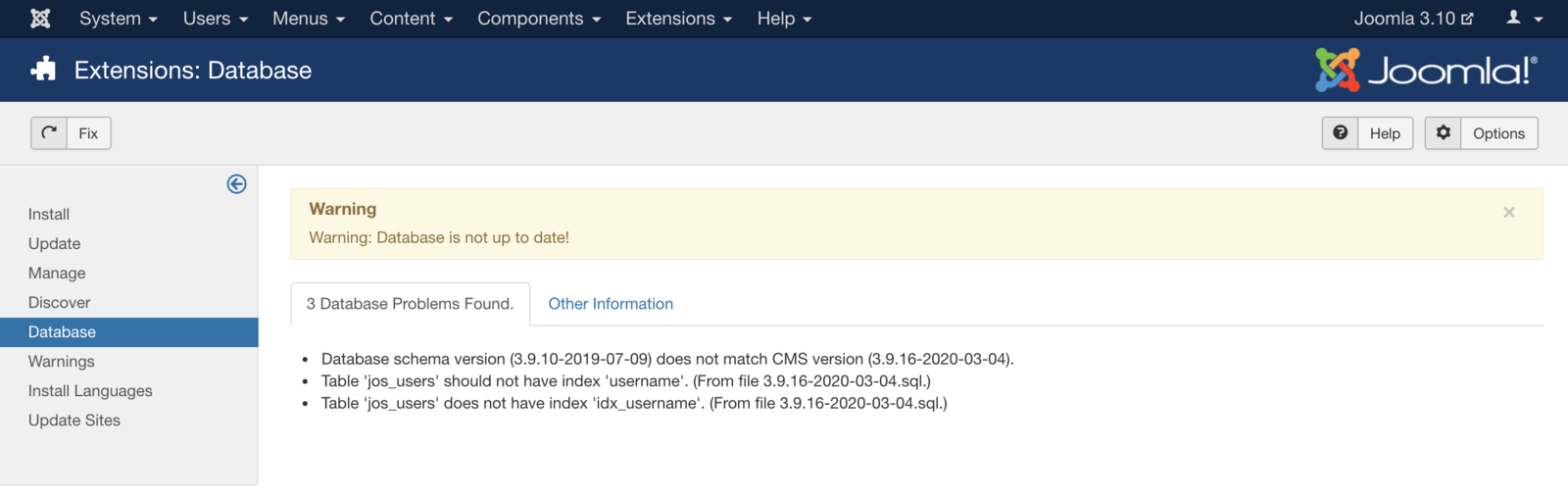
- Make sure you have the latest database schema updated to the latest version 3.10.x version by going to Extension Manager → Database tab. If your schema is not up to date as in the following image, click the Fix button:
- Empty trash: Do you have any articles in the trash? If so, delete them (and any applicable media that may be associated with them if not in use elsewhere on the site). Articles (categories and menu items too) left in the trash can cause issues in having a migration to complete without errors.
- Test.
- Backup again.
Assess Each Extension
In your planning, you determined which third-party extensions were staying or going and how they migrate. For this portion of the Step by Step, you’ll be using two different sections of the site extensively: the Pre-Update Check in Components → Joomla! Update and Extensions → Manage → Manage. You are going to be looking at every single extension installed on your site. You will be determining if they need to be updated to the latest version or uninstalled. More details in Pre-Update Check.
- Using the Pre-Update Check in order to use the Pre-Update Check, you will need to set the Joomla! Update component to Joomla 4. To do this follow:
- Go to Components → Joomla Update It should say no updates found. If it doesn’t, update Joomla to the latest version (must be 3.10.x) and test. Then do another backup. Click on the Options button at the top right corner.
- Select Joomla Next from the drop-down for Update Channel.
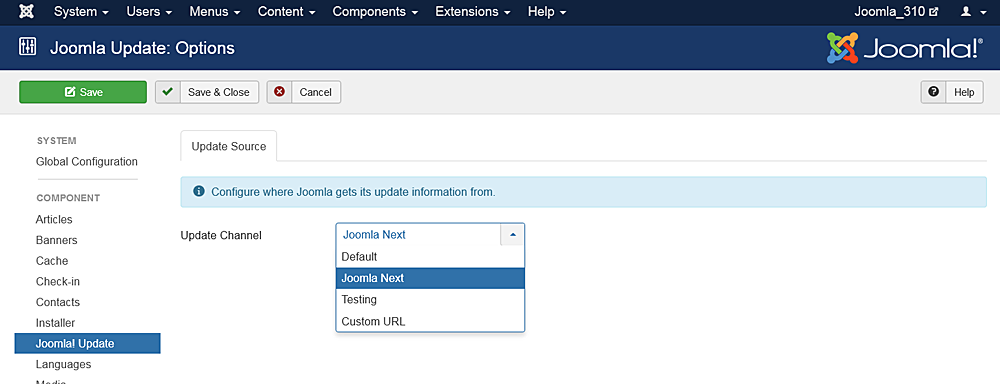
- Click Save & Close
- You will then see your Installed Joomla Version, the latest Joomla! version and the URL for the update package. Joomla will show you the requirements again for Joomla 4. If it flags that you have either an incompatible system or extensions it will tell you here. Take a moment to review this page.
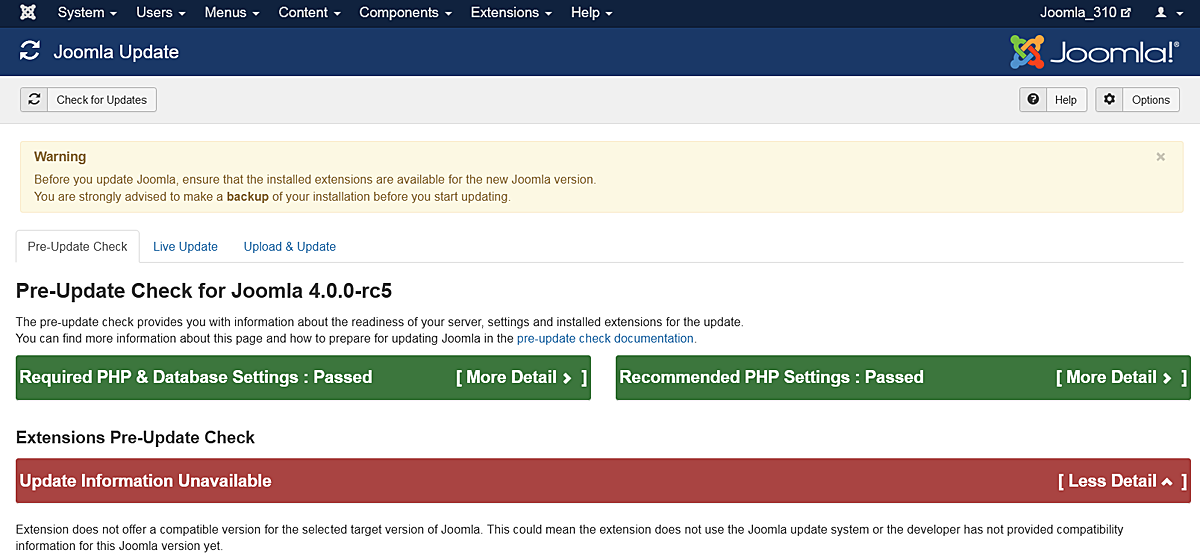 Notice: Do NOT update to Joomla! 4 right now. This is only to prepare your third-party extensions and get the site compatible with Joomla! 4.
 - Look at the Pre-Update Check and the Extension Pre-Update Check in the Pre-Update Check tab of the Joomla Update component. If any extension that isn’t in your planning is listed here, add it to your list of extensions to investigate.
- If you migrated from Joomla! 2.5 to 3.x in the past, there may be some leftover extensions that need to be cleaned up. The following are older 2.5 or 3.x extensions that need to be uninstalled before updating to Joomla 4:
- plg_content_geshi
- Bluestork Administrator Template
- Beez_20
- Beez5
- Atomic
- When it comes to templates, uninstall all core frontend or backend templates except Protostar and Beez3 (frontend templates) and Isis or Hathor (administrator templates). NOTE: Protostar is NOT compatible with Joomla 4. Upon migration it will disappear. You'll need to have one template selected as default and you can use Protostar or Beez3. Protostar will disappear upon migration to Joomla 4.x.
- If you come across other files that need to be uninstalled, please add them to this page. This is a wiki so anyone can add to the page. Thank you in advance for your service.
- You will notice the tags for whether an extension is compatible or not. These tags generally tell a true story if they say No or Yes. If they say Missing Compatibility Tag it means that the extension developer didn’t use a tag in their extension so we don’t know if it is or isn’t compatible with Joomla 4. Talk to the developer to verify.
- Update Extensions: update any extensions that you will keep in your website. In Joomla! 3.10.x you can go to Extension Manager → Update tab and click Find Updates which will add a tooltip in the Version column, under the Manage tab, giving some compatibility information from the backend. This functionality only supports extensions that update via the Extension Manager Update tab. If you have extensions installed that do not use the Joomla extension update they need to be assessed manually as detailed below. The same goes for those extensions that have a tooltip. You will still need to check the type of package and migration path with the extension developer to verify how to upgrade/migrate.
- Investigate and Uninstall Extensions Extensions: go to Extension Manager → Manage
- Click the Button Search Tools to show the filter options
- Select Package from the Select Type drop-down.
 Selecting Package first is recommended because if there is something you need to uninstall in a package, it will automatically uninstall the associated Modules, Plugins, or anything else in the package at one time.
 - Uninstall any Packages that are no longer needed or will not be migrating to Joomla 4.
- Repeat this process of going through the Manage tab for all Types in the drop-down: Component, File, Language, Library, Module, Plugin and Template. If the Author states Joomla! Project, then leave those extensions alone. For all others, make sure that you uninstall those not in use or not compatible with Joomla! 4.x.
NOTE! You will not be able to uninstall any template that is set as default. You will need to select a Core supported template like Beez3 or Protostar and then uninstall the template if you need to do so. Another reminder: Protostar is not compatible with Joomla 4. Upon migration it will disappear. Selecting it as default simply gets you to Joomla 4.x.
- Make a note of any versions of Packages and Components currently running that you will be keeping on your site. You can copy/paste them into a document for reference.
- For any extensions you are keeping but don't use the Extension Manager to one-click update (Extensions → Manage → Update) update all extensions to the latest versions.
- Before and as you update, note if the extensions have both 3.10.x & 4.x versions in the same package. If so, they will be fine to one-click update. If not, and 3.10 and 4.x have different packages, you need to look at them case by case. They will normally fall into one of the following scenarios:
- The extension has separate packages but upon upgrading to 4.x, they automatically detect this and still work. Make sure the developer confirms this.
- The extension has separate packages that need to be uninstalled in 3.10.x and then installed with the Joomla 4.x version once the site is migrated. An example of this might be a content plugin. It is very simple to uninstall it in 3.10.x and then install it again in 4.x.
- See Template Considerations for more specific information on templates and Converting a previous Joomla! Version template
Notes on Search (com_search)
Search (com_search) will be decoupled in Joomla 4.x. Search (com_search) will migrate to Joomla 4. After migration, you'll need to update it to the Joomla 4.x version via com_installer. It will continue to be maintained, but more the same way a third-party extension is by receiving updates via com_installer. It is recommended to use Smart Search (com_finder) going forward. Search is still available from the Joomla Extensions Directory.
Notes on Weblinks
Weblinks was decoupled back in Joomla 3.4. If it was in use on a 2.5 site, the migration process would note this and migrate the Weblinks component and data. For the migration from 3.10.x to 4.x, it will be the same. It is still available and maintained on the JED at Official Extensions.
Notes on Legacy Routing
Legacy routing will not be available in Joomla 4.x. Only Modern will be available. When you do the migration, if you are using Legacy routing, the system will automatically change them to Modern routing. You will want to run a broken link checker on your site after migrating to Joomla 4.x and before you go live.
Going to Joomla! 4.x
Once you have either updated or uninstalled your third-party extensions so that only those compatible with Joomla! 4 remain in your installation, continue with the following steps:
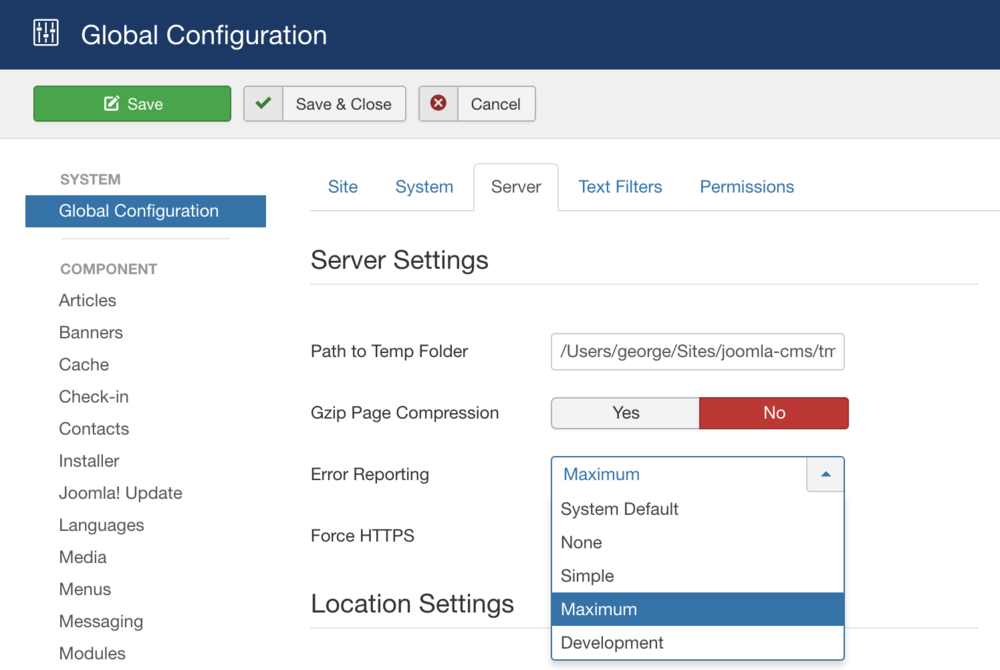
- Go to System → Global Configuration → Server tab and turn Error Reporting from System Default to Maximum. Make sure to Save & Close.
- Take another backup.
- Go to Components → Joomla Update. (It should say no updates found. If it doesn’t, update Joomla to the latest version and test. Then do another backup.) Click on the Options button at the top right corner.
- Select Joomla Next from the drop-down for Update Channel.
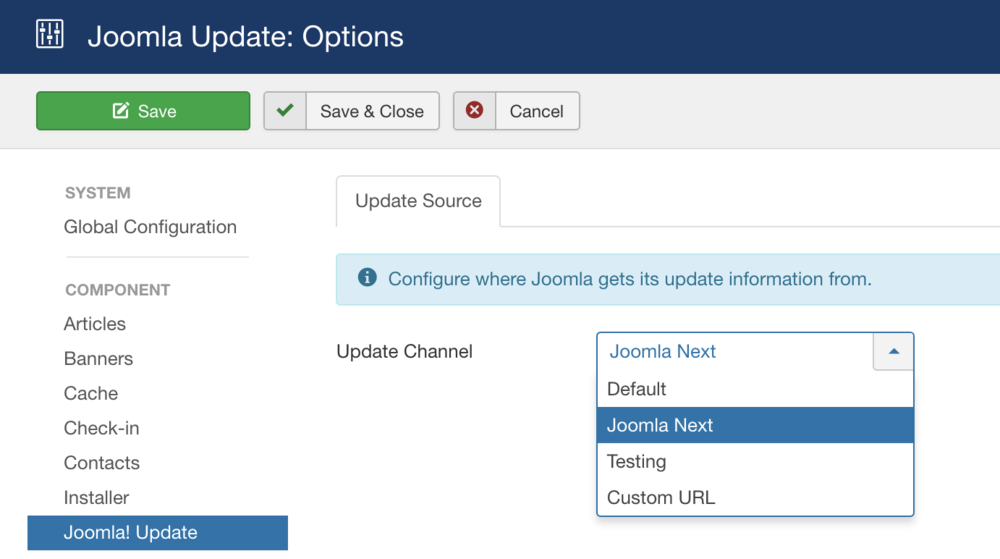
- Save & Close.
- You will then see your Installed Joomla Version, the Latest Joomla! version and the URL for the update package. Joomla will show you the requirements again for Joomla 4. If it flags that you have either an incompatible system or extensions it will tell you here. Take a moment to review this page.
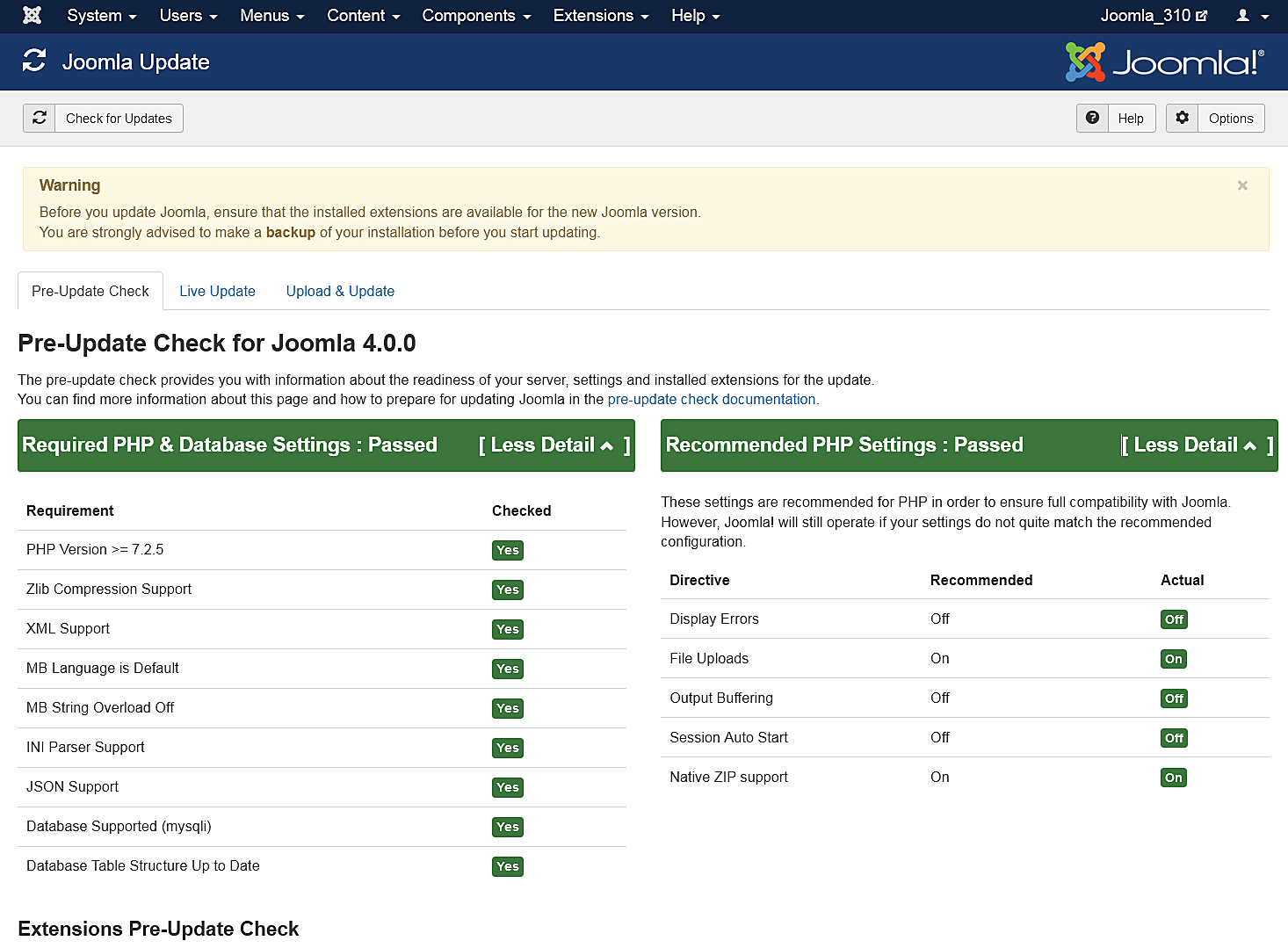
- If the update is not showing up, go to Extension manager → Update and press Purge Cache from the toolbar. Now the update to Joomla! 4 should show up.
- Cross your fingers, and make sure you have that backup available in case.
- Click the Install the Update button.
- Make tea whilst the status bar loads to fully green. The amount of time this takes is dependent on your site, Internet connection and server speed. The process takes about two minutes. When the update is finished, you will probably be logged out of the Administrator. Sign in again. Twice.
- If all goes well, you will get to a totally new look to the backend administrator panel.
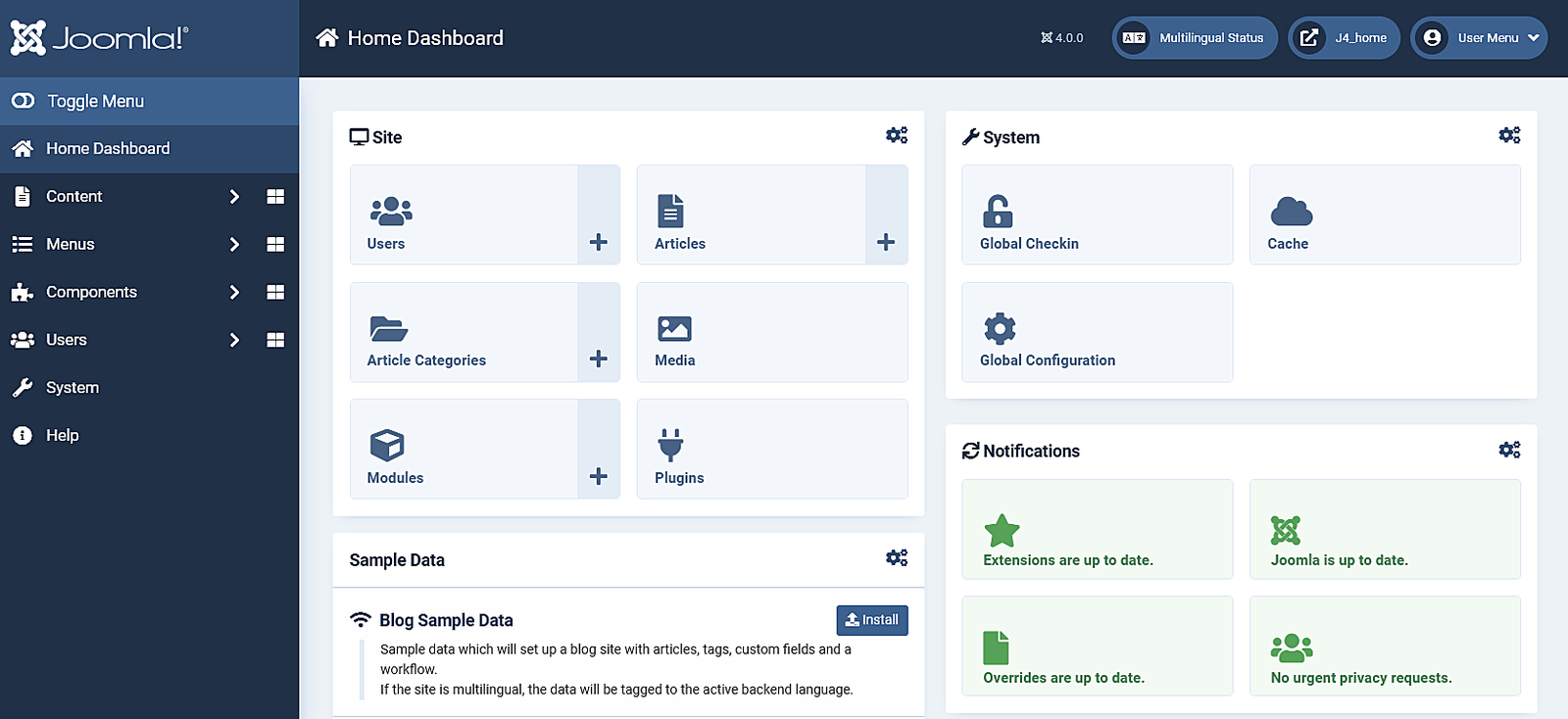
- Go to System → Maintenance → Database and click Fix if any errors show.
- In System → Install → Discover see if there are any extensions to install. (There shouldn't be any!)
- Go to the frontend of your site and see if it shows up even if it’s not the right template. If so, continue. If not, see common errors during migration.
- Take a backup.
- Install your new template or other extensions if you have them to install. Back up often.
- Configure them. Back up often.
- Run a broken link checker and fix any broken links.
- Test everything. Back up often.
- If everything works as expected, turn Error Reporting back to System Default (System → Global Configuration → Server tab). Make sure to Save & Close.
Going Live with your Joomla! 4.x Site
- When you’re ready to go live, back up your 3.10 site for the last time. Restore it in a subdirectory or subdomain if you would like to.
- Back up your Joomla! 4.x site and move or restore your Joomla! 4.x site to the root (or change nameservers if you were building on a temporary domain at a new hosting account root).
- Test again.
- IF you have made security changes to .htaccess file in the past, you may need to change a line (or lines) in it in order to update to the next version of Joomla 4. Please go to Htaccess changes after Joomla 4 to determine if you need to change your file or not.
- Remove the Joomla! 3.10 site from the server within a couple of days unless you have edited your robots.txt file to block the search engine spiders.
- Remove all development sites you have been working with or keep them up-to-date if they are running a current version in order to ward off hack attempts on your server.
If you had data change on the 3.10 site while you were migrating to 4.x, you will want to get that data moved over to the 4.x site before going live. You can do this manually (make sure you keep the same user IDs - go in order) or by using a third party extension.
Suggested Tools
- Akeeba Backup is very popular for backup and restore.
- More backup tools.