 User Documentation
 n Joomla, featured articles are those designated for special emphasis on the site, to appear more prominently than other articles in the same category. This tutorial describes how to designate a featured article that appears on the homepage.
Prerequisites
Administrator access to a Joomla site (version 5 or above). See 1.0 Admin Login.
Your website has a main menu with a home menu item that is a featured item menu type. This is standard with a new Joomla installation.
Add a Featured Article to the Homepage
Any article can be designated as a featured article. In this tutorial we'll create a simple article, but you may use an existing article instead.
Steps
Check for a Featured Articles Menu Item
- Login to Joomla as an administrator and navigate to the Home Dashboard.
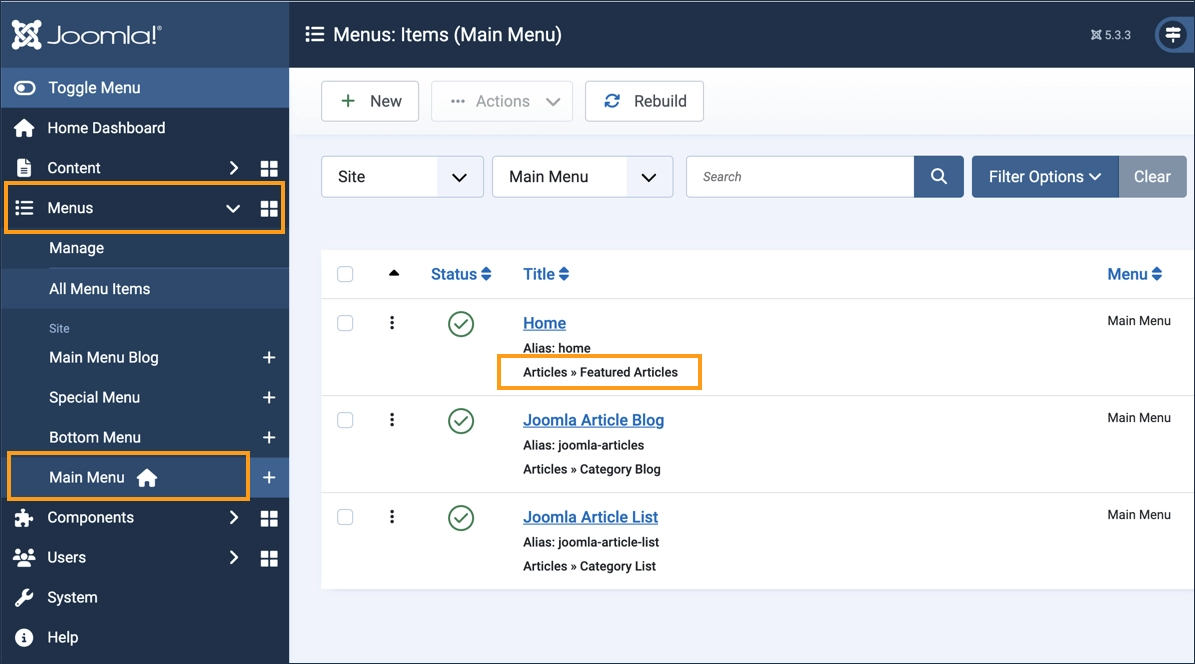
- In the left side menu, expand Menus and click on Main Menu.
- A list of menu items appears.
- Check that the Home menu item is an Articles > Featured Articles menu type.
Create or Set a Featured Article
- Login to Joomla as an administrator and navigate to the Home Dashboard.
- In the left side menu, expand Content and click on Articles.
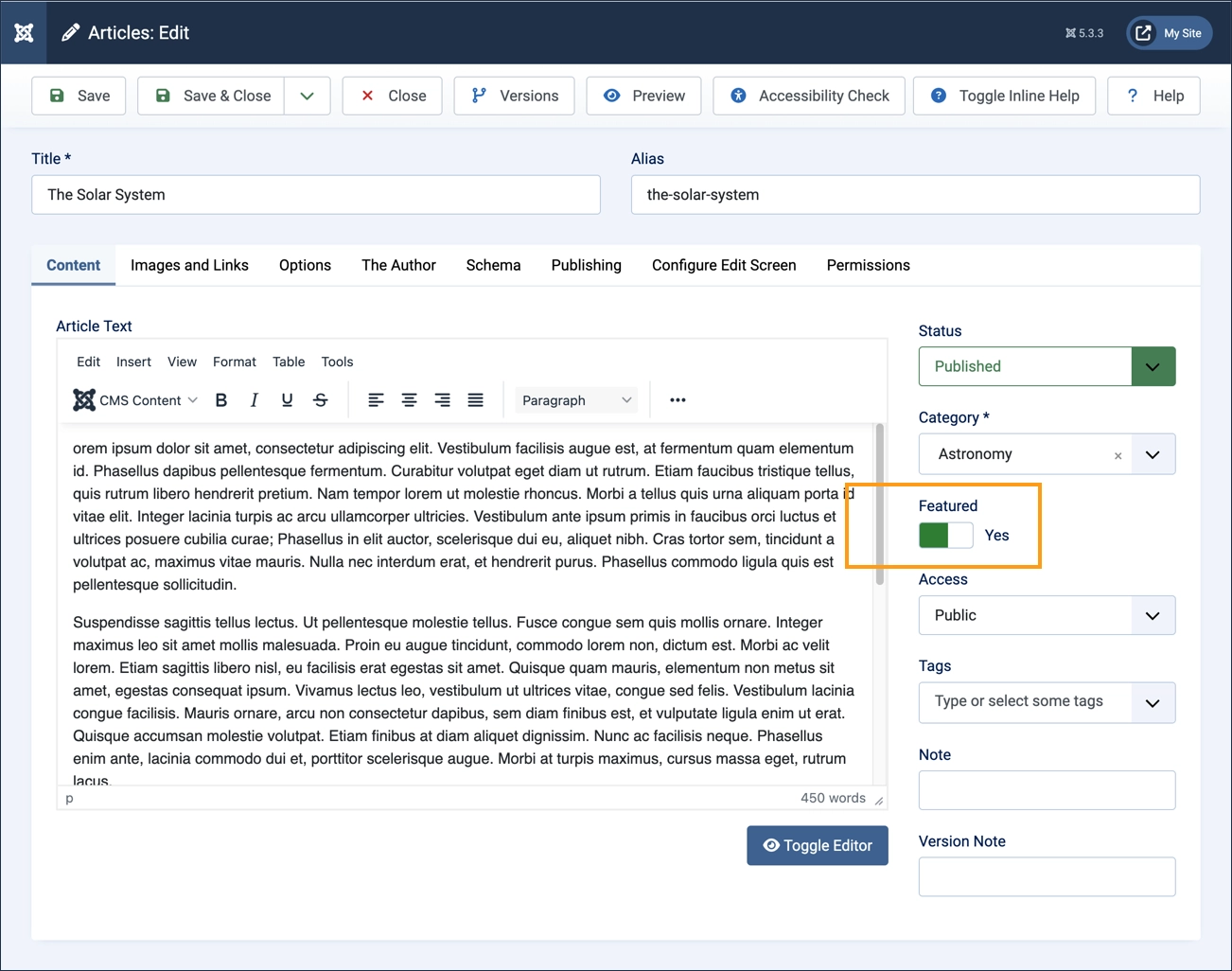
- Edit an existing article, or create a new article.
- Click on the New button. A new-article form appears.
- Enter a title and sample content for your article
- Select a category and then set Featured toggle to Yes.
- Save and Close the article, returning to the list
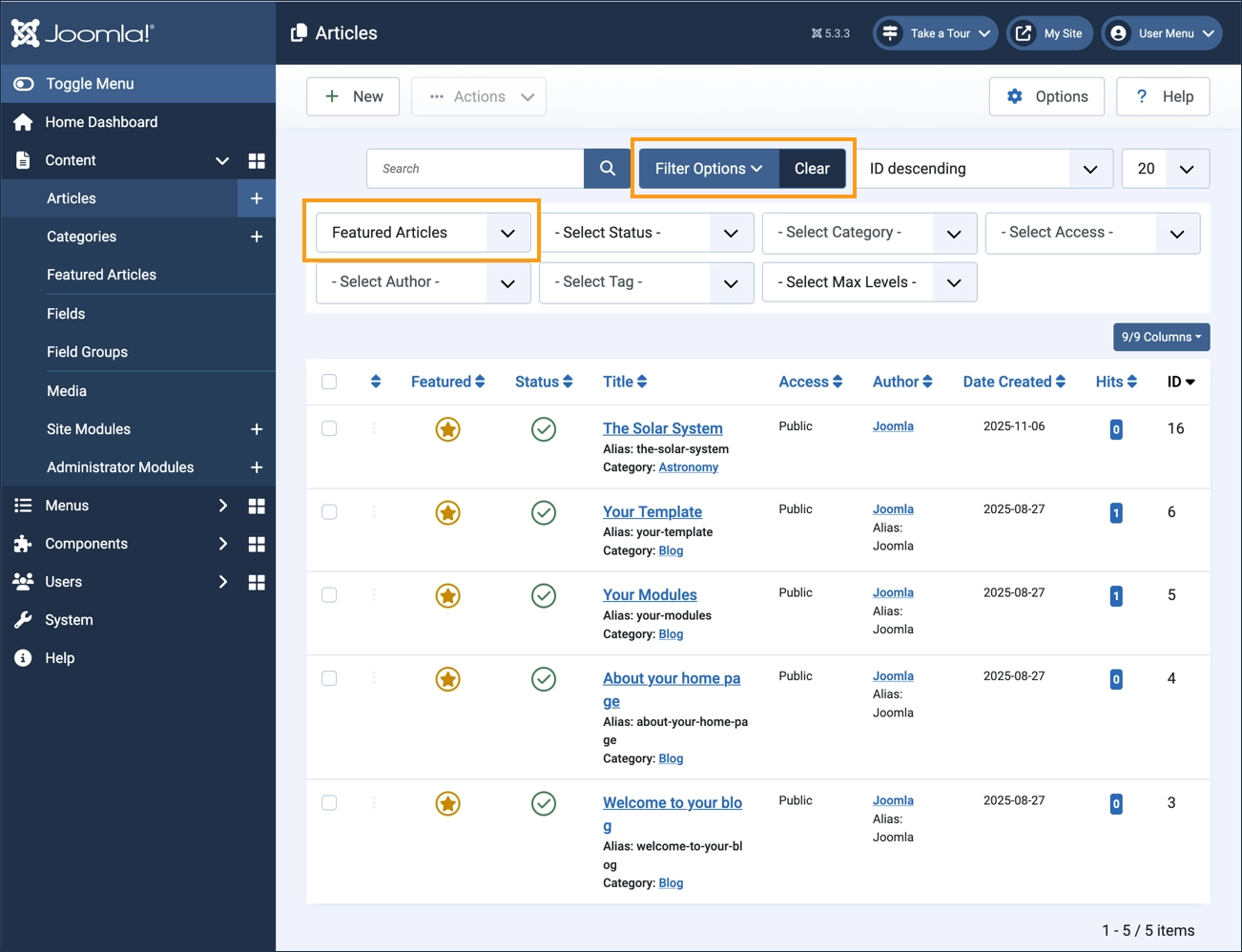
- Find your article in the list by filtering for featured articles.
- Click on the Filter Options button to display the filters, then set the Select Featured filter to Featured Articles.
- Your article appears in the list along with any other featured articles
- Clear the filter by clicking the Clear button.
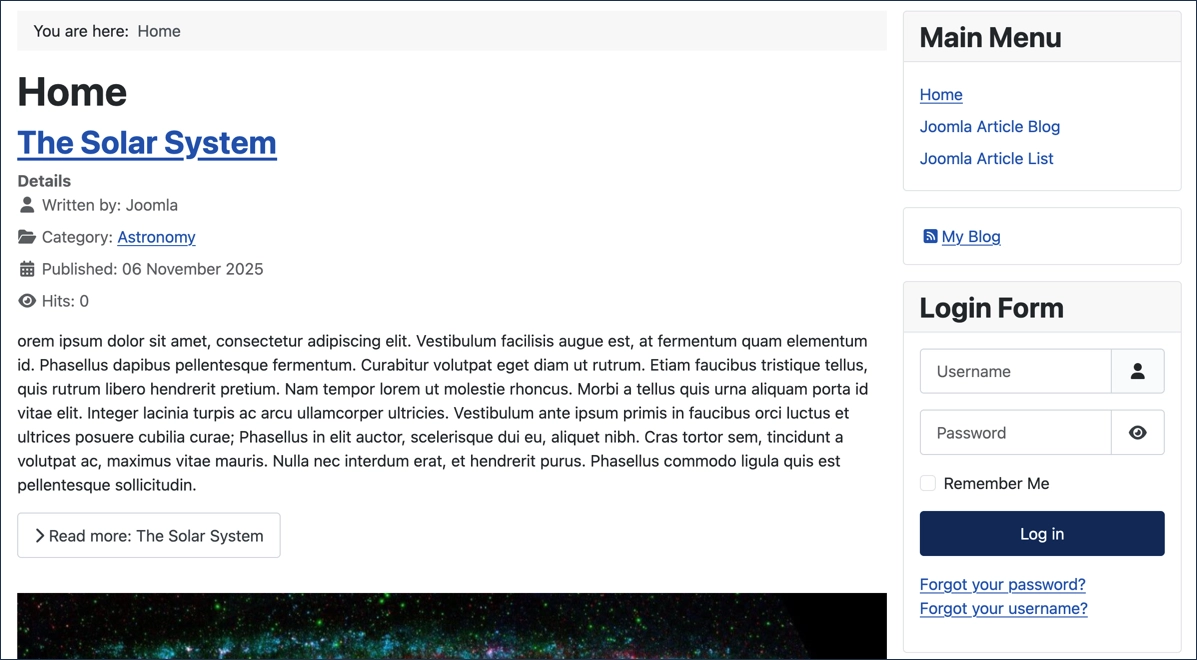
- Open your site's homepage
- Find your article along with other featured articles on the homepage
Concepts
- Featured articles may use a read more button to control the amount of article text that appears in the article list.
- Article order is managed in the Blog Layout tab of the menu item.